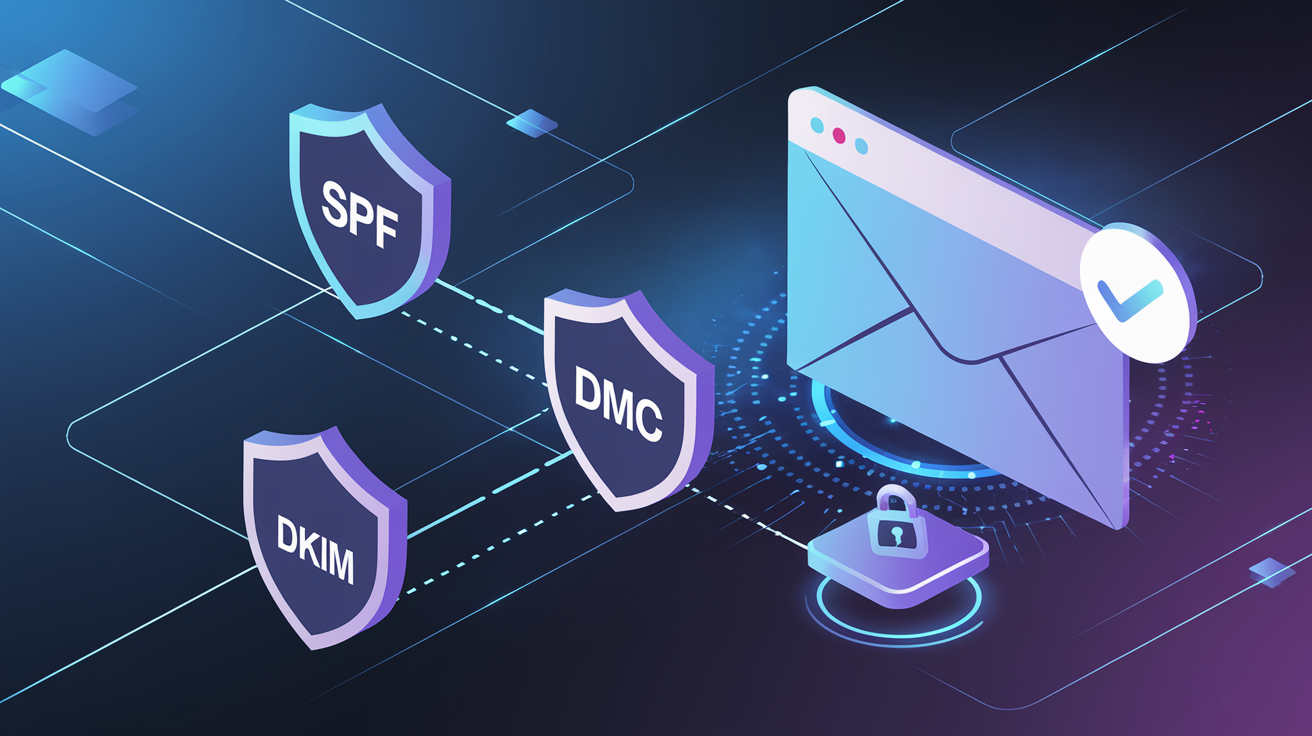
Every day, billions of emails are sent claiming to be from domains they don't actually belong to. Phishing attacks, spam, and brand impersonation run rampant because email was designed without built-in authentication. SPF, DKIM, and DMARC are the three protocols that fix this—and if you're not using all three correctly, you're leaving your domain vulnerable and hurting your deliverability.
The Stakes Are High
- ⚠91% of cyberattacks start with a phishing email
- ⚠$12.5 billion lost to business email compromise in 2023
- ⚠Domains without DMARC are 4x more likely to be spoofed
- ⚠Gmail and Yahoo require authentication for bulk senders (2024+)
Why Email Authentication Matters
Email authentication serves two critical purposes:
1. Security
Prevents bad actors from sending emails that appear to come from your domain (spoofing). Protects your customers, employees, and brand reputation from phishing attacks.
2. Deliverability
Inbox providers use authentication to verify you are who you claim to be. Properly authenticated emails are far more likely to reach the inbox instead of spam.
The Three Pillars of Email Authentication
Who can send
Authorized servers
Message integrity
Digital signature
Policy & reporting
What to do on failure
SPF (Sender Policy Framework)
SPF answers the question: “Which servers are allowed to send email for this domain?”
It's a DNS TXT record that lists all the IP addresses and services authorized to send email on your behalf. When a receiving server gets an email claiming to be from your domain, it checks your SPF record to verify the sending server is permitted.
How SPF Works
# 1. Email arrives claiming to be from your-domain.com
# 2. Receiver checks DNS for SPF record:
$ dig TXT your-domain.com
v=spf1 include:_spf.google.com include:sendgrid.net -all
# 3. Receiver checks if sending IP matches authorized sources
# 4. If match → PASS, if not → FAIL
SPF Record Syntax
| Mechanism | Purpose | Example |
|---|---|---|
| v=spf1 | Version (required, must be first) | v=spf1 |
| include: | Include another domain's SPF | include:_spf.google.com |
| ip4: | Authorize specific IPv4 | ip4:192.168.1.1 |
| ip6: | Authorize specific IPv6 | ip6:2001:db8::1 |
| a | Authorize domain's A record | a:mail.example.com |
| mx | Authorize domain's MX servers | mx |
| -all | Hard fail (reject unauthorized) | -all |
| ~all | Soft fail (mark but accept) | ~all |
Example SPF Records
# Google Workspace only
v=spf1 include:_spf.google.com -all
# Google + SendGrid + Mailchimp
v=spf1 include:_spf.google.com include:sendgrid.net include:servers.mcsv.net -all
# Microsoft 365 + HubSpot + custom IP
v=spf1 include:spf.protection.outlook.com include:mail.hubspot.com ip4:203.0.113.5 -all
⚠ SPF Lookup Limit
SPF has a hard limit of 10 DNS lookups. Each include:,a:, mx:, andredirect: counts as one lookup. Exceeding this limit causes SPF to fail entirely. Use ip4: and ip6: when possible (they don't count toward the limit).
DKIM (DomainKeys Identified Mail)
DKIM answers the question: “Has this email been tampered with in transit?”
It adds a digital signature to every email you send. The receiving server can verify this signature against a public key published in your DNS. If the signature is valid, the email hasn't been modified since you sent it.
How DKIM Works
Sending Side
- 1. Your mail server has a private key
- 2. It creates a hash of the email headers/body
- 3. It encrypts the hash with the private key
- 4. The signature is added as a header
Receiving Side
- 1. Receiver extracts the signature from headers
- 2. Fetches public key from your DNS
- 3. Decrypts the signature using public key
- 4. Compares hash—if match, email is authentic
DKIM DNS Record
DKIM records are TXT records published at a selector subdomain:
# Format: selector._domainkey.your-domain.com
$ dig TXT google._domainkey.your-domain.com
v=DKIM1; k=rsa; p=MIGfMA0GCSqGSIb3DQEBAQUAA4GNADCBiQ...
| Tag | Meaning | Value |
|---|---|---|
| v= | Version | DKIM1 |
| k= | Key type | rsa (most common) |
| p= | Public key (base64) | MIGfMA0GCS... |
✓ Use 2048-bit Keys
1024-bit DKIM keys are considered weak and may be flagged by some providers. Always generate 2048-bit keys for better security. Most email providers now default to 2048-bit.
DMARC (Domain-based Message Authentication)
DMARC answers the question: “What should receivers do when authentication fails?”
DMARC builds on SPF and DKIM by adding two crucial features: a policy that tells receivers how to handle failures, and a reporting mechanism that gives you visibility into who's sending email as your domain.
DMARC Alignment
For DMARC to pass, either SPF or DKIM must pass and be aligned with the From: header domain:
SPF Alignment
The Return-Path (envelope sender) domain must match or be a subdomain of the From: header domain.
DKIM Alignment
The d= domain in the DKIM signature must match or be a subdomain of the From: header domain.
DMARC Record Syntax
# DMARC record location: _dmarc.your-domain.com
v=DMARC1; p=reject; rua=mailto:dmarc@your-domain.com; pct=100; adkim=s; aspf=s
| Tag | Purpose | Values |
|---|---|---|
| v= | Version (required) | DMARC1 |
| p= | Policy (required) | none | quarantine | reject |
| rua= | Aggregate report address | mailto:dmarc@domain.com |
| ruf= | Forensic report address | mailto:forensic@domain.com |
| pct= | Percentage to apply policy | 0-100 (default 100) |
| adkim= | DKIM alignment mode | r (relaxed) | s (strict) |
| aspf= | SPF alignment mode | r (relaxed) | s (strict) |
DMARC Policies Explained
p=none (Monitor Only)
No action taken on failures. Use this to collect data and identify all legitimate senders before enforcing. Start here.
p=quarantine (Spam Folder)
Failed emails go to spam/junk. Good intermediate step that provides protection while allowing you to catch any missed legitimate senders.
p=reject (Block Completely)
Failed emails are rejected entirely—they never reach the recipient. Maximum protection against spoofing. Your ultimate goal.
The Right Setup Order
Setting up email authentication in the wrong order can break your email delivery. Follow this sequence:
Set Up SPF First
List all services that send email for your domain: your email provider, CRM, marketing tools, transactional email services.
Configure DKIM for Each Sender
Enable DKIM in each service that sends email for you. Each service provides its own DKIM record to add to your DNS.
Add DMARC in Monitor Mode
Start with p=none to collect reports without affecting delivery. This reveals any senders you may have forgotten.
Analyze Reports (2-4 weeks)
Review DMARC aggregate reports. Identify any legitimate senders failing authentication and fix them before moving to enforcement.
Gradually Enforce
Move to quarantine, then reject. Use pct= to roll out gradually.
# Step 1: Quarantine 25%
v=DMARC1; p=quarantine; pct=25; rua=mailto:dmarc@domain.com
# Step 2: Quarantine 100%
v=DMARC1; p=quarantine; pct=100; rua=mailto:dmarc@domain.com
# Step 3: Reject 100%
v=DMARC1; p=reject; rua=mailto:dmarc@domain.com
Testing and Validation
Before considering setup complete, validate everything works:
Validation Checklist
| Tool | What It Tests | URL |
|---|---|---|
| MXToolbox | SPF, DKIM, DMARC records | mxtoolbox.com |
| Mail-Tester | Full email authentication test | mail-tester.com |
| DMARC Analyzer | DMARC record validation | dmarcanalyzer.com |
| Google Admin Toolbox | Check MX, SPF, DKIM | toolbox.googleapps.com |
Common Issues and Fixes
✗Issue: SPF PermError (Too Many Lookups)
Your SPF record exceeds 10 DNS lookups, causing it to fail entirely.
✓ Fix: Flatten your SPF record by replacing include: mechanisms with direct IP addresses where possible. Use SPF flattening tools like autospf.com.
✗Issue: DKIM Signature Doesn't Verify
Email headers show DKIM=fail even though you've set it up.
✓ Fix: Check that the selector in the email matches the DNS record. Ensure the public key is complete (long keys sometimes get truncated in DNS).
✗Issue: DMARC Alignment Failure
SPF and DKIM pass, but DMARC still fails.
✓ Fix: The domains must align. If your From: header is @company.com, your SPF return-path and DKIM d= must also use company.com (or a subdomain with relaxed alignment).
✗Issue: Third-Party Service Failing Authentication
Emails from your CRM or marketing tool fail DMARC.
✓ Fix: Configure the service to use your domain for DKIM signing (custom sending domain), and add their servers to your SPF. Most services have documentation for this.
✗Issue: Email Forwarding Breaks Authentication
Forwarded emails fail SPF because the forwarding server isn't in your SPF.
✓ Fix: This is expected behavior. DKIM survives forwarding (unlike SPF). Ensure DKIM is properly configured—DMARC will pass if either SPF or DKIM passes with alignment.
Ongoing Monitoring
Authentication isn't set-and-forget. Monitor continuously to catch issues:
DMARC Aggregate Reports
Daily/weekly XML reports showing authentication results for all emails sent as your domain.
- • Who's sending as your domain
- • Pass/fail rates by source
- • Volume patterns
DMARC Forensic Reports
Individual failure reports with full email headers for debugging.
- • Exact failure reason
- • Source IP and headers
- • Useful for troubleshooting
⚠ DMARC Reports Are XML
Raw DMARC reports are machine-readable XML—not human-friendly. Use a DMARC monitoring service or tool to parse and visualize them. Sending reports to a regular inbox will quickly become overwhelming.
Monitoring Schedule
- Daily: Check for any critical authentication failures
- Weekly: Review DMARC aggregate reports for trends
- Monthly: Audit all sending services for proper configuration
- On change: Re-test whenever you add a new sending service
Automate Your Authentication Monitoring
Kawaa's DMARC monitoring parses your reports automatically, alerts you to authentication failures, and tracks your domain's compliance over time. Stop reading XML manually.
Start Monitoring Free